How to Back Up Local Notepad Notes (So You Never Lose a Draft)
Local autosave is fast — until you clear site data. Practical backup habits for browser notepads: JSON export, downloads, and when to copy out.
Local pads fail in predictable ways
Browser notepads autosave to local storage. That’s why they’re fast and private. They also fail when you clear site data, switch browsers, or get a new laptop without exporting first.
Three backup levels
- Soft: leave the tab pinned; survive refreshes.
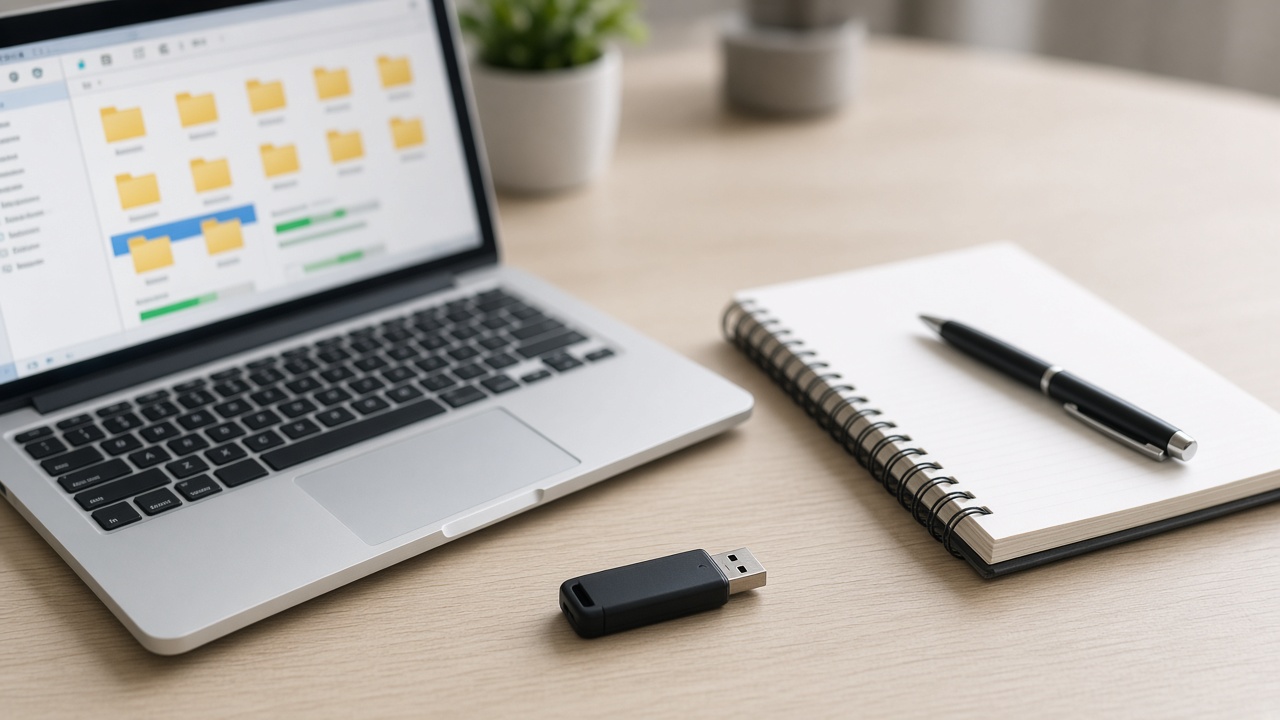
- Export: JSON backup or download/print when a draft matters.
- Promote: paste finished work into Docs/email/your real archive.
When to export (checklist)
- Before clearing cookies or “cleaning” the browser
- Before OS reinstalls or new devices
- After a long writing session you care about
- Before lending the computer to someone else
Sen Notes backup habit
Use Backup notes (JSON) for a full snapshot you can restore later. For a single draft, download or copy is enough. The product is honest: we don’t pretend local notes sync to the cloud.
What not to do
Don’t treat a local notepad as your only copy of a thesis, contract, or client deliverable. Pads are for capture and drafting — archives belong in files you control.
Try it
Write something disposable, then run a backup once so the muscle memory exists. Open Sen Notes
Written by
Sen Gideons